Showing posts with label Exchange 2013. Show all posts

Wednesday, August 17, 2016

5 More Tips for Exchange Server 2013 Administrators

Are you thinking about deploying Exchange Server 2103 or have you already done it? Microsoft released the Exchange Server 2103 Preview  in July 2012 and the Release to Manufacturing (RTM) build for Exchange Server 2013 in October 2012. Exchange Server 2013 is now up to cumulative Update (CU) 13 released in June 2016 at the time of this blog post.  In this blog series, we share some helpful tips that will help you as an Exchange Server 2013 Administrator. Here is a link to the first post titled 5 Tips for Exchange 2013 Administrators. Now on to the next post in the series:"5 More Tips for Exchange Server 2013 Administrators"
 
 
5 More Tips for Exchange Server 2013 Administrators
 
  1. Learn how to search in the Exchange Admin Center
    Searching in the Exchange Admin Center is different than the Exchange Management Console in Exchange 2007. In older versions of Exchange using the Exchange Management Console (EMC) or the Exchange Control Panel (ECP), you were able to find mailboxes when searching by just entering the name or part of the name and you would get results. We published a post on how to search using the Exchange Admin Center so please check that out.

  2. Triple verify that your third party applications work with Exchange 2013.
    This includes Anti-virus exclusions, monitoring and auditing software. This is very important to know as you deploy Exchange 2013. If the vendor does not have a version that supports Exchange 2013 you run the risk of having the product impact your Exchange deployment and cause issues or if you opt not to use it until they do, then you lose the benefits that you purchased the product for in the first place. Either outcome is not what you want. We dealt with McAfee Anti-virus exclusion paths for Exchange directories impacting our Exchange 2013 deployment and until it was addressed we actually suspended migrations while we worked with McAfee, Microsoft and our security team. For more information on Anti-Virus Software in the Operating System on Exchange Servers

  3. Learn how the Exchange Administration Center works in Exchange Server 2103
    In an environment like ours which is a large enterprise, there are thousands of admins that manage user issues like creating mailboxes, distribution groups, Public Folders and adding user photos to name a few. We have created documentation to assist them using the Exchange Administration Center since the new interface is different to how users were managed in Exchange 2007 which is what we migrated from to Exchange 2013.


  4. Learn how Database Availability Groups(DAGs)work
    Database Availability Groups (DAGs) were first introduced in Exchange 2010 and are here to stay. DAGs are a base component of the high availability and site resilience framework built into Exchange 2013. A DAG is a group of up to 16 Mailbox servers that host a set of databases and provides automatic, database-level recovery from failures that affect individual databases, networks, or servers. Any server in a DAG can host a copy of a mailbox database from any other server in the DAG. When a server is added to a DAG, it works with the other servers in the DAG to provide automatic recovery from failures that affect mailbox databases, such as a disk failure or server failure. for more information, reference Database availability groups (DAGs)

  5. Use the tools provided by Microsoft: Microsoft Remote Connectivity Analyzer and the Exchange Server Deployment Assistant
  6. When you are preparing to deploy Exchange, Microsoft has provided resources to help you. The Microsoft Remote Connectivity Analyzer validates External connectivity to your servers and lets Exchange Admins run connectivity diagnostics to test issues with Exchange, Skype for Business/Lync and Office 365. There is also now a Client Testing option and Message Analyzer in the latest version of the tool. Here is a screenshot from https://testconnectivity.microsoft.com/

     
    The Exchange Server Deployment Assistant is a web-based tool that asks you a few questions about your current environment and then generates a custom step-by-step checklist that will help you deploy different versions of Exchange Server for different types of scenarios. Learn more at https://technet.microsoft.com/en-us/library/jj218681(v=exchg.150).aspx


BONUS TIP : Do not ignore the cloud.
The cloud has come a long way and should not be ignored in your Exchange 2013 deployment. A hybrid configuration where some user mailboxes are hosted in the cloud and are connected to the others deployed in your data centers is becoming a common scenario. A hybrid configuration provides a seamless look and feel for Exchange in your organization and Exchange Online in Microsoft Office 365. In addition, a hybrid deployment can serve as an intermediate step to moving completely to an Exchange Online organization. Reduced costs, benefits of not maintaining hardware and accessibility from anywhere are some of the factors that make Office 365 appealing to some companies and you may want to take a look at that.
 

We hope these tips have been helpful in your Exchange 2013 deployments. If you have any thoughts, opinions or comments feel free to share them below.

Friday, January 16, 2015

5 Tips for Exchange Server 2013 Administrators

Are you thinking about deploying Exchange Server 2103 or have you already done it? Microsoft released the Exchange Server 2103 Preview  in July 2012 and the Release to Manufacturing (RTM) build for Exchange Server 2013 in October 2012. Exchange Server 2013 is now up to cumulative Update(CU) 7 released in December 2014.  In this new blog series, we will be sharing some helpful tips that will help you as an Exchange 2013 Administrator.


5 Tips for Exchange Server 2013 Administrators
  1. Learn PowerShell and the Exchange Management Shell.
  2. PowerShell (formerly Monad), a management framework that combines a command line shell with a scripting language. PowerShell has been around since 2006 and is currently up to version 5. Exchange Management Shell (EMS) is an extensible command line interface for Exchange Server Management that sits on top of PowerShell. Learning how to use PowerShell and EMS are important to our jobs as Exchange Server 2013 Administrators. Unlike in Microsoft Exchange Server 2007, where local Windows PowerShell is used, a Windows PowerShell snap-in for Exchange isn't loaded for Exchange 2013. PowerShell connects to the closest Exchange 2013 server using a required component called Windows Remote Management 3.0, performs authentication checks, and then creates a remote session for you to use. There are plenty of resources available online for you to learn more about PowerShell.

  3. Know the hardware Exchange Server 2013 is deployed on.
  4. If you are deploying Exchange Server 2013 at your location on purchased servers, you need to evaluate the following: Memory, CPU and disk space. You will need to purchase Client Access Servers and Mailbox servers. Investing in an Uninterruptible Power Supply (UPS) is highly recommended to allow you to properly shutdown the Exchange servers in case of a power outage.  If you are going with  Exchange Online and Office 365, the data center provides the hardware and will have the ability to scale out and scale up as needed. They will also have UPS for the servers in the data center.

  5. Review and Use the new Exchange Server Role Requirements Calculator(formerly Exchange Storage Calculator)
  6. This tool from Microsoft is essential in giving us recommendations for:
    • Deploying dedicated server roles, the minimum number of Client Access Processor Cores, minimum number of Client Access Servers and memory in each server.
    • Deploying Multi-role servers(Client Access and Mailbox) The Client Access Role will be accounted for in the memory and CPU recommendations.
    New to the tool is transport sizing and database sizing and better utilization of disks for Just a Bunch of Disks (JBOD) scenarios for Exchange 2013 installations. The calculator will recommend multiple databases in each volume and supports single datacenter deployments and multi-datacenter deployments like ours.
    Download the latest version of the Exchange 2103 Server Role Requirements Calculator here.

  7. Have a test lab for your Exchange Server 2013 Environment
  8. This is a critical step in preparation for deploying any version of Exchange Server. Before you begin you should review the Exchange 2013 Prerequisites.  For an Exchange Server 2013 test lab environment, we would suggest domain controller(s), a root Certification Authority (CA) Server, DNS and DHCP Servers, Exchange Server 2013 Mailbox and Client Access Servers and workstations for client testing running Office 2010, 2013 or 2016 depending on what is being used in your environment.

  9. Learn how Role Based Access Control (RBAC) works
  10. RBAC is the permission model used in Exchange Server to control what Administrators and users can do based on their roles within your company. Microsoft references the Triangle of Power that addresses The Where, The What and The Who. The Where is where will the permissions be needed. This is also known as the scope. The What is what the person needs to be able to do within The Where. These can be customized to meet your company needs. This is also known as the Role. Finally The Who is the person(s) (administrator or user) that needs to be able to do The What in The Where they have been allowed to do it. This is known as a role group. Finally the Glue or Role Assignment is how all the parts work together. For more information reference "Understanding Role Based Access Control".


We have just published 5 more tips for Exchange Server 2013 Administrators called "5 More Tips for Exchange Server 2013 Administrators" If you have any thoughts, opinions or comments feel free to share them below.


Tuesday, September 30, 2014

Why you should upgrade Distribution groups moving to Exchange Server 2013

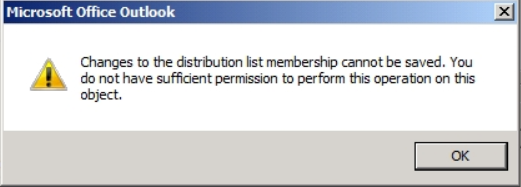
If you previously migrated from Exchange Server 2003 to Exchange Server 2007 and now moving to Exchange Server 2013, Group owners will not be able manage distribution groups created in Exchange Server 2003 or Exchange Server 2007 anymore. They can get the following error message when trying to make changes to a group from Outlook: 


In helping a user who could not manage a mail-enabled security group that she was the owner of and had all the correct rights and RBAC roles assigned, we saw that the Exchange Version for the problem group was 6.5 which was an old 2003 group that was not upgraded when our organization migrated to Exchange 2007 a few years ago.

When checking the group we were able to see the Exchange Version Number as shown below:
 
 
To upgrade the group using the Exchange Management Shell:
 
Set-DistributionGroup -id "Name of the group" -Forceupgrade -bypassSecuritygroupManagerCheck
 
After the group was upgraded we checked the Exchange Version number. It was now Version 14 as shown below. The user was able to manage the group after Active Directory (AD) Replication had occurred.


If you want to upgrade all your groups at the same time you can use the following from the Exchange Management Shell :
 
Get-DistributionGroup -ResultSize unlimited | Set-DistributionGroup -forceupgrade -bypassSecuritygroupManagerCheck
  
 
If you want to get list of the groups with their Exchange Versions in a report that can be shared with management before you begin to upgrade them, you can run the following from the Exchange Management Shell:
 

$groupdata = Get-DistributionGroup -ResultSize unlimited | select displayname, exchangeversion
 
$groupdata | export-csv c:\groups_exchversion.csv 

If you want to see the Exchange versions of your groups and get a count by Exchange versions, run the following in the Exchange Management Shell:
 
$groupdata | group ExchangeVersion
or
 Get-DistributionGroup -ResultSize Unlimited | Group ExchangeVersion if you had not done the previous CSV export like the example above.
 
The output should be similar to the following that I got running this in our environment today 


As you can see we have some work to do with upgrading our groups so let me get back to that. If you upgrade the distribution groups to Exchange 2013 but the owners/managers are still on Exchange 2007 they will no longer be able to manage the groups. This happens because the Exchange trusted subsystem cannot modify the legacy (2003 and 2007) objects. If you migrate the users to Exchange 2013 but the groups are not upgraded they will also not be able to manage the group. You should be following the guidance of using Exchange 2007 administrative tools to manage Exchange 2007 objects and using Exchange 2013 administrative tools to manage Exchange 2013 objects.  
 
Our current approach is to migrate the user mailboxes to Exchange Server 2013 and upgrade the groups for that specific OU to the Exchange 2103 version after the user migration. This way we can ensure that the groups are upgraded in the same timeframe as the user migration to avoid the support ticket that generated this blog post. 
 
Good luck to those of you moving to Exchange 2013. Please share your feedback and thoughts in the comments.

Friday, August 29, 2014

Why Can't I find a mailbox using Exchange Admin Center (EAC) in Exchange 2013?

Why Can't I find a mailbox using Exchange Admin Center (EAC) in Exchange 2013?

The answer: You may be looking in the wrong place in the Exchange Admin Center(EAC). In older versions of Exchange using the Exchange Management Console (EMC) or the Exchange Control Panel (ECP), you were able to find mailboxes when searching by just entering the name or part of the name and you would get results. Using the Exchange Admin Center (EAC) which is the new web based management console in Exchange 2013, is bit different and I will go through the options to help you get what you want when searching for a mailbox. Please note that with each of the options outlined in this post you need to wait for the data to finish loading before you start searching using the search box.

If you are searching for a User Mailbox be sure you have the mailboxes option selected.


If you are searching for a distribution group you have to have the groups option selected.
 
 
If you are searching for a resource mailbox you need to have the resources option selected
 
 
If you are searching for a shared mailbox you need to have Shared option selected


I hope this post has helped and made it easier for you when searching for a mailbox using the Exchange Admin Center in Exchange 2013. Please share your comments and feedback on this post.